

You go to your website and get nothing. No error, no message, just a blank white page. In the WordPress world this is called the white screen of death, and it’s one of the most unnerving things that can happen to a site, because it gives you no clue what went wrong.
Take a breath: your content is almost always still there. Something stopped WordPress from building the page, and the page came out empty. Below is what usually causes it, how to track it down, and when it makes sense to let us handle it. If your site is blank right now and you need it back, Website Rescue can help: call 1.833.4WP.HOST.
White Screen vs. “Critical Error”
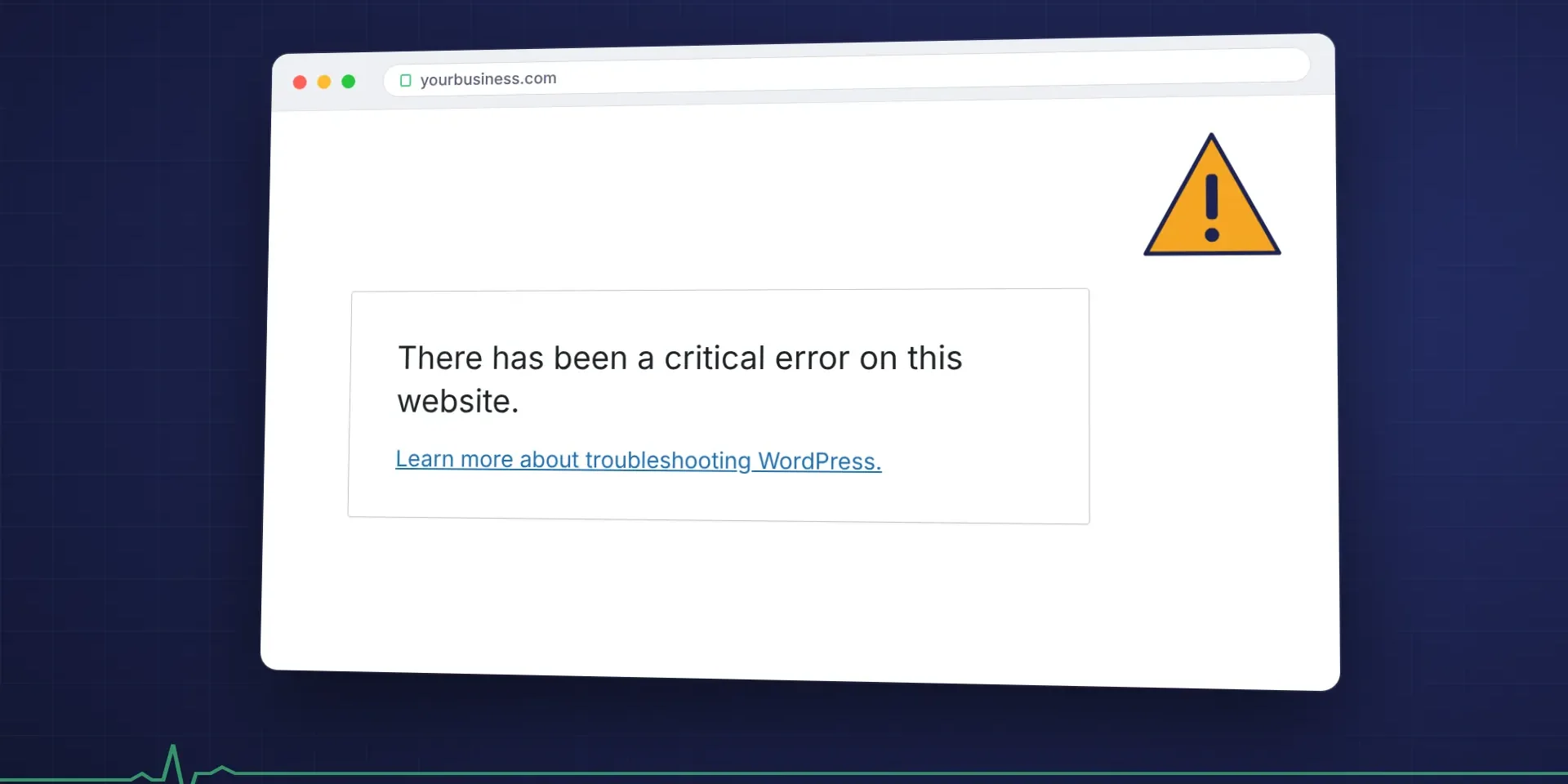
Newer versions of WordPress usually catch serious errors and show a plain message instead: “There has been a critical error on this website.” If that’s what you see, follow our guide to fixing the critical error message. A completely blank page means the error happened somewhere WordPress couldn’t catch it, or something is serving an empty page in its place.
First, Narrow It Down
- Is the whole site blank, or just some pages? One blank page points to that page’s content or template. The whole site points to a plugin, theme, server or cache problem.
- Does the dashboard work? Try yoursite.com/wp-admin. If the admin loads but the public site is blank, look at your theme and cache first. If both are blank, start with plugins.
- Is it blank for everyone? Check on your phone using cellular data, not Wi-Fi, or in a private browser window. If it looks fine there, your own browser or a cache is holding an old copy.
The Most Common Causes
- A plugin conflict, often right after an update
- A theme problem, especially an old or abandoned theme
- Running out of memory, where PHP stops before the page is built
- A caching plugin or server cache that saved a blank page and keeps serving it
- A PHP version change by your host that older code can’t handle
- A typo in custom code, such as a snippet pasted into functions.php
- A hack that damaged a core file
How to Fix It, Step by Step
Back up your site first if your host lets you. Then work down the list and stop when the site comes back.
- Clear every cache. Clear your caching plugin (if you can reach the dashboard), your host’s cache and your CDN, then reload in a private window. This alone fixes a surprising number of white screens.
- Check your inbox. If WordPress caught the error, it emails the site’s admin address a “Your Site is Experiencing a Technical Issue” message with a recovery mode link. Check spam too.
- Turn off plugins without the dashboard. In your host’s File Manager (or FTP), open wp-content and rename the plugins folder to plugins-off. If the site comes back, a plugin is to blame. Rename it back and turn plugins on one at a time until the white screen returns.
- Switch the theme. Rename your active theme’s folder in wp-content/themes so WordPress falls back to a default theme. If the site loads, the theme is the problem.
- Turn on the error log. In wp-config.php, set WP_DEBUG and WP_DEBUG_LOG to true and WP_DEBUG_DISPLAY to false, reload the blank page, then read wp-content/debug.log. The last lines usually name the exact file and line. Turn it off when you’re done.
- Raise the memory limit. If the log says “Allowed memory size exhausted”, ask your host to raise PHP’s memory limit or add WP_MEMORY_LIMIT to wp-config.php.
- Check your PHP version. If your host just changed it, ask them to switch back temporarily while you update the plugins or theme that can’t keep up. Treat that as a stopgap: old PHP stops getting security updates.
- Restore a backup. If you have one from before the problem started, it’s often the quickest way back. Then update carefully, one thing at a time.
When to Call for Help
Hand it off if:
- You can’t get into the dashboard and don’t want to touch server files
- The white screen keeps coming back
- The error log points to something you don’t recognize, or you suspect a hack
- Your site is years behind on updates, so every fix breaks something else
A white screen is usually a symptom, not the whole problem. Website Rescue is our WordPress website repair service for small and mid-sized businesses. We get the site back online, find what actually broke, bring WordPress, PHP, plugins and themes up to date, and then keep it current on our WordPress care plans so it doesn’t happen again. Website Rescue starts at $500.
Staring at a blank screen right now? Call 1.833.4WP.HOST and we’ll look at it right away.
Frequently Asked Questions
Is my website gone?
Almost never. Your pages, posts and images are still stored. Something stopped WordPress from building the page, so it came out blank.
Why is only my site blank, but my dashboard works?
That usually points to your theme or a cache serving an old blank page. Clear every cache first, then try switching to a default theme.
Why is my site blank on my computer but fine on my phone?
Your browser or network is probably holding an old cached copy. Clear your browser cache or try a private window.
Can a white screen mean I’ve been hacked?
Sometimes. If you didn’t change anything and the error log mentions files you don’t recognize, treat it as a possible hack and get the site cleaned and secured.
Can you fix it for me?
Yes. Website Rescue is our WordPress website repair service, starting at $500. Call 1.833.4WP.HOST and we’ll look at it right away.
Alex Stamatellos
Alex Stamatellos is the co-founder and Technical Director of Webcentrex, LLC in Flemington, New Jersey. Since 2006 he has helped hundreds of businesses build, host and secure their WordPress websites, drawing on nearly two decades of hands-on experience in WordPress development, troubleshooting, optimization and server management.
Related Posts
November 23, 2026
“There Has Been a Critical Error on This Website”: What It Means and How to Fix It
Seeing "There has been a critical error…

November 2, 2026
How Much Does a Website Cost in Hunterdon County? (2026)
What a small business website really…
